
4. Menus & Shortcuts
Desktop apps need menus and keyboard shortcuts. GTKX provides declarative compound components for both.
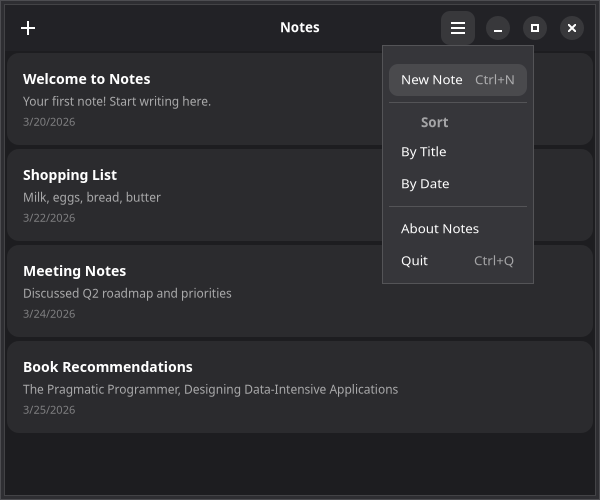
Adding a Menu
Attach a menu to a GtkMenuButton using GtkMenuButton.MenuItem, GtkMenuButton.MenuSection, and GtkMenuButton.MenuSubmenu:
import { GtkMenuButton } from "@gtkx/react";

<AdwHeaderBar>
    <AdwHeaderBar.PackStart>
        <GtkButton iconName="list-add-symbolic" tooltipText="New Note (Ctrl+N)" onClicked={addNote} />
    </AdwHeaderBar.PackStart>
    <AdwHeaderBar.PackEnd>
        <GtkMenuButton iconName="open-menu-symbolic" tooltipText="Main Menu">
            <GtkMenuButton.MenuItem
                id="new"
                label="New Note"
                onActivate={addNote}
                accels="<Control>n"
            />
            <GtkMenuButton.MenuSection>
                <GtkMenuButton.MenuItem
                    id="preferences"
                    label="Preferences"
                    onActivate={() => setShowPreferences(true)}
                    accels="<Control>comma"
                />
                <GtkMenuButton.MenuItem
                    id="shortcuts"
                    label="Keyboard Shortcuts"
                    onActivate={() => {}}
                    accels="<Control>question"
                />
            </GtkMenuButton.MenuSection>
            <GtkMenuButton.MenuSection>
                <GtkMenuButton.MenuItem
                    id="about"
                    label="About Notes"
                    onActivate={() => setShowAbout(true)}
                />
            </GtkMenuButton.MenuSection>
        </GtkMenuButton>
    </AdwHeaderBar.PackEnd>
</AdwHeaderBar>
GNOME HIG Menu Guidelines
The GNOME HIG has specific recommendations for primary menus:
- Always use
open-menu-symbolicas the icon and "Main Menu" as the tooltip - Include Preferences, Keyboard Shortcuts, and About items (in that order, in a final section)
- Do not include "Quit" or "Close" — users close windows via the window controls
- Keep menus between 3–12 items, grouped by purpose
Menu Elements
| Component | Purpose |
|---|---|
GtkMenuButton.MenuItem | A clickable menu item with id, label, onActivate, and optional accels |
GtkMenuButton.MenuSection | Groups items with a visual separator and optional label header |
GtkMenuButton.MenuSubmenu | A nested submenu with its own items |
Keyboard Accelerators
The accels prop on MenuItem registers a global keyboard shortcut. GTK accelerator strings use angle brackets for modifiers:
"<Control>n"— Ctrl+N"<Control><Shift>z"— Ctrl+Shift+Z"<Alt>F4"— Alt+F4"F5"— F5
Submenus
Nest GtkMenuButton.MenuSubmenu for hierarchical menus:
<GtkMenuButton label="File">
    <GtkMenuButton.MenuItem id="new" label="New" onActivate={handleNew} />
    <GtkMenuButton.MenuSubmenu label="Export As">
        <GtkMenuButton.MenuItem id="export-txt" label="Plain Text" onActivate={exportTxt} />
        <GtkMenuButton.MenuItem id="export-md" label="Markdown" onActivate={exportMd} />
    </GtkMenuButton.MenuSubmenu>
    <GtkMenuButton.MenuSection>
        <GtkMenuButton.MenuItem id="quit" label="Quit" onActivate={quit} accels="<Control>q" />
    </GtkMenuButton.MenuSection>
</GtkMenuButton>
Application Menu Bar
For a traditional menu bar across the top of the window, place menus as siblings of the window and enable showMenubar:
<>
    <GtkMenuButton.MenuSubmenu label="File">
        <GtkMenuButton.MenuItem id="new" label="New" onActivate={addNote} accels="<Control>n" />
        <GtkMenuButton.MenuSection>
            <GtkMenuButton.MenuItem id="quit" label="Quit" onActivate={quit} accels="<Control>q" />
        </GtkMenuButton.MenuSection>
    </GtkMenuButton.MenuSubmenu>

    <AdwApplicationWindow title="Notes" showMenubar onClose={quit}>
        {/* ... */}
    </AdwApplicationWindow>
</>
Keyboard Shortcuts
For shortcuts not tied to menus, use GtkShortcutController with GtkShortcutController.Shortcut:
import { GtkShortcutController } from "@gtkx/react";
import * as Gtk from "@gtkx/ffi/gtk";

<GtkBox orientation={Gtk.Orientation.VERTICAL} focusable>
    <GtkShortcutController scope={Gtk.ShortcutScope.GLOBAL}>
        <GtkShortcutController.Shortcut
            trigger="<Control>n"
            onActivate={addNote}
        />
        <GtkShortcutController.Shortcut
            trigger="<Control>f"
            onActivate={() => setSearchMode(true)}
        />
        <GtkShortcutController.Shortcut
            trigger="Delete"
            onActivate={deleteSelected}
            disabled={!selectedId}
        />
    </GtkShortcutController>
    {/* ... */}
</GtkBox>
Shortcut Scope
The scope prop controls when shortcuts are active:
| Scope | Behavior |
|---|---|
Gtk.ShortcutScope.LOCAL | Only when the parent widget is focused |
Gtk.ShortcutScope.MANAGED | Managed by a parent GtkShortcutManager |
Gtk.ShortcutScope.GLOBAL | Active anywhere in the window |
Multiple Triggers
Pass an array for multiple triggers on the same shortcut:
<GtkShortcutController.Shortcut
    trigger={["F5", "<Control>r"]}
    onActivate={refresh}
/>
Putting It Together
Here's the Notes app header bar with both a menu button and keyboard shortcuts:
import {
    AdwApplicationWindow,
    AdwHeaderBar,
    AdwToolbarView,
    GtkButton,
    GtkMenuButton,
    GtkShortcutController,
    quit,
} from "@gtkx/react";
import * as Gtk from "@gtkx/ffi/gtk";

export default function App() {
    // ... state from previous chapters

    return (
        <AdwApplicationWindow title="Notes" defaultWidth={600} defaultHeight={500} onClose={quit}>
            <GtkShortcutController scope={Gtk.ShortcutScope.GLOBAL}>
                <GtkShortcutController.Shortcut trigger="<Control>n" onActivate={addNote} />
                <GtkShortcutController.Shortcut
                    trigger="Delete"
                    onActivate={deleteSelected}
                    disabled={!selectedId}
                />
            </GtkShortcutController>
            <AdwToolbarView>
                <AdwToolbarView.AddTopBar>
                    <AdwHeaderBar>
                        <AdwHeaderBar.PackStart>
                            <GtkButton
                                iconName="list-add-symbolic"
                                tooltipText="New Note (Ctrl+N)"
                                onClicked={addNote}
                            />
                        </AdwHeaderBar.PackStart>
                        <AdwHeaderBar.PackEnd>
                            <GtkMenuButton iconName="open-menu-symbolic" tooltipText="Main Menu">
                                <GtkMenuButton.MenuItem
                                    id="new"
                                    label="New Note"
                                    onActivate={addNote}
                                    accels="<Control>n"
                                />
                                <GtkMenuButton.MenuSection>
                                    <GtkMenuButton.MenuItem
                                        id="preferences"
                                        label="Preferences"
                                        onActivate={() => setShowPreferences(true)}
                                        accels="<Control>comma"
                                    />
                                </GtkMenuButton.MenuSection>
                                <GtkMenuButton.MenuSection>
                                    <GtkMenuButton.MenuItem
                                        id="about"
                                        label="About Notes"
                                        onActivate={() => setShowAbout(true)}
                                    />
                                </GtkMenuButton.MenuSection>
                            </GtkMenuButton>
                        </AdwHeaderBar.PackEnd>
                    </AdwHeaderBar>
                </AdwToolbarView.AddTopBar>
                {/* ... list from previous chapter */}
            </AdwToolbarView>
        </AdwApplicationWindow>
    );
}
Next
In the next chapter, you'll add a sidebar with categories and split-view navigation.